Quick Start Guide
This guide walks you through the basics of ColorClip Pro. You'll be picking and organizing colors in just a few minutes.
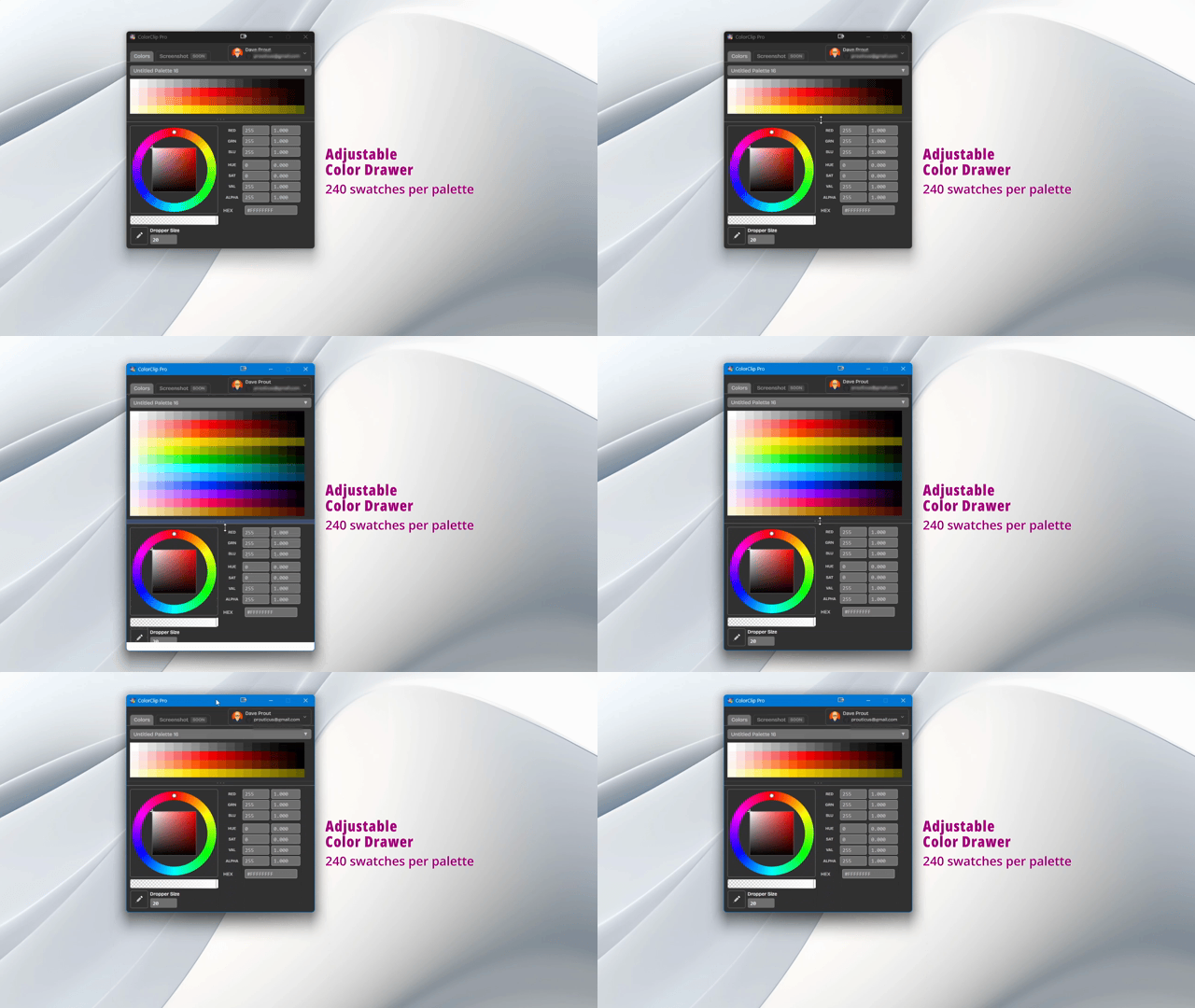 ColorClip Pro's draggable color drawer sits on top of any application
 Step 1: Create Your First Palette
When you first launch ColorClip Pro, you'll see an empty palette. Each palette can hold up to 256 color swatches.
- Click the + New Palette button (or press
Cmd+N/Ctrl+N) - Give your palette a name (e.g., "Brand Colors")
- Empty swatch slots appear ready for colors
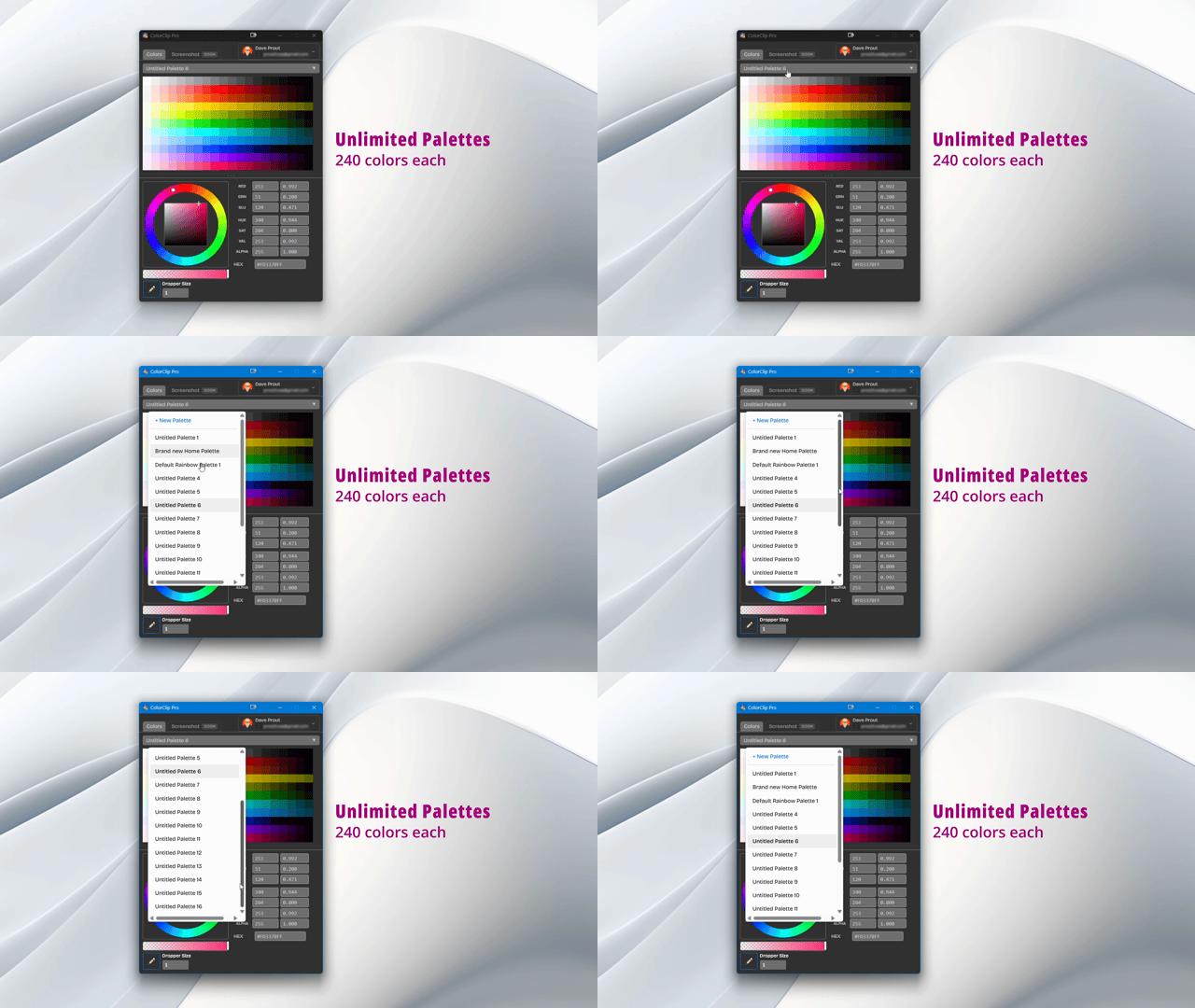 You can create unlimited palettes and switch between them instantly
 Step 2: Add a Color
There are three ways to add a color to your palette:
Method 1: Color Picker
- Click an empty swatch slot
- Choose from the color wheel or use the sliders
- Switch between multiple color models (HEX, RGB, HSV, etc.)
- The color saves automatically to that slot
 Switch between HEX, RGB, HSV, and more color models without losing your color
 Method 2: Eyedropper
- Click the eyedropper button or press
Cmd+E(Mac) /Ctrl+E(Windows) - Your screen dims and shows a magnified preview
- Adjust the eyedropper size for the precision you need
- Click anywhere on screen to capture that color
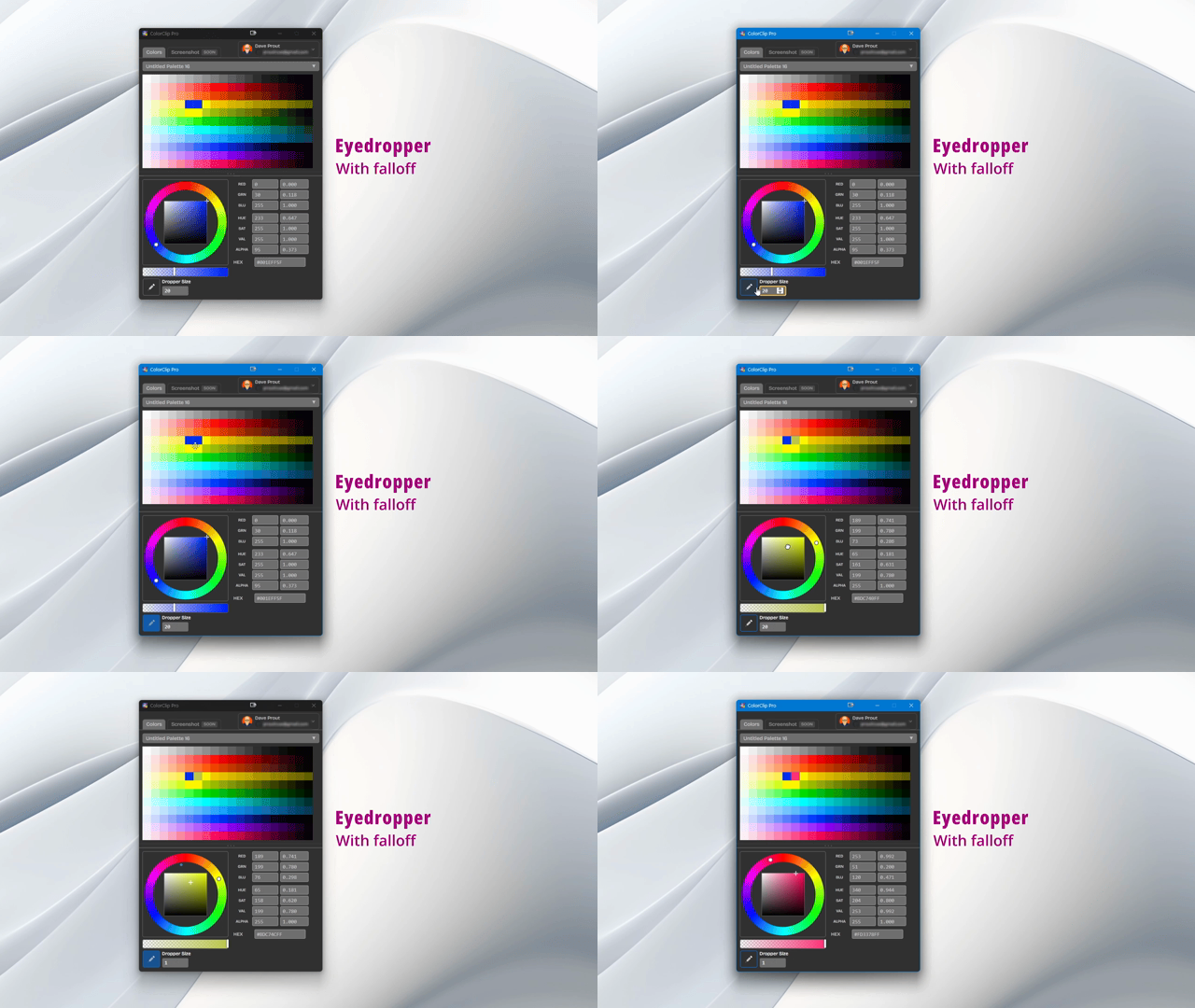 The fuzzy eyedropper lets you adjust capture radius — great for anti-aliased or blurred edges
 Method 3: Paste a HEX Code
- Copy any HEX color code (e.g.,
#FF5733) - Click an empty swatch slot
- Paste the code directly into the color input
Step 3: Organize Your Colors
Label Swatches
Right-click any swatch and choose Edit Label to give it a meaningful name like "Brand Primary" or "Accent Blue". Labels appear on hover.
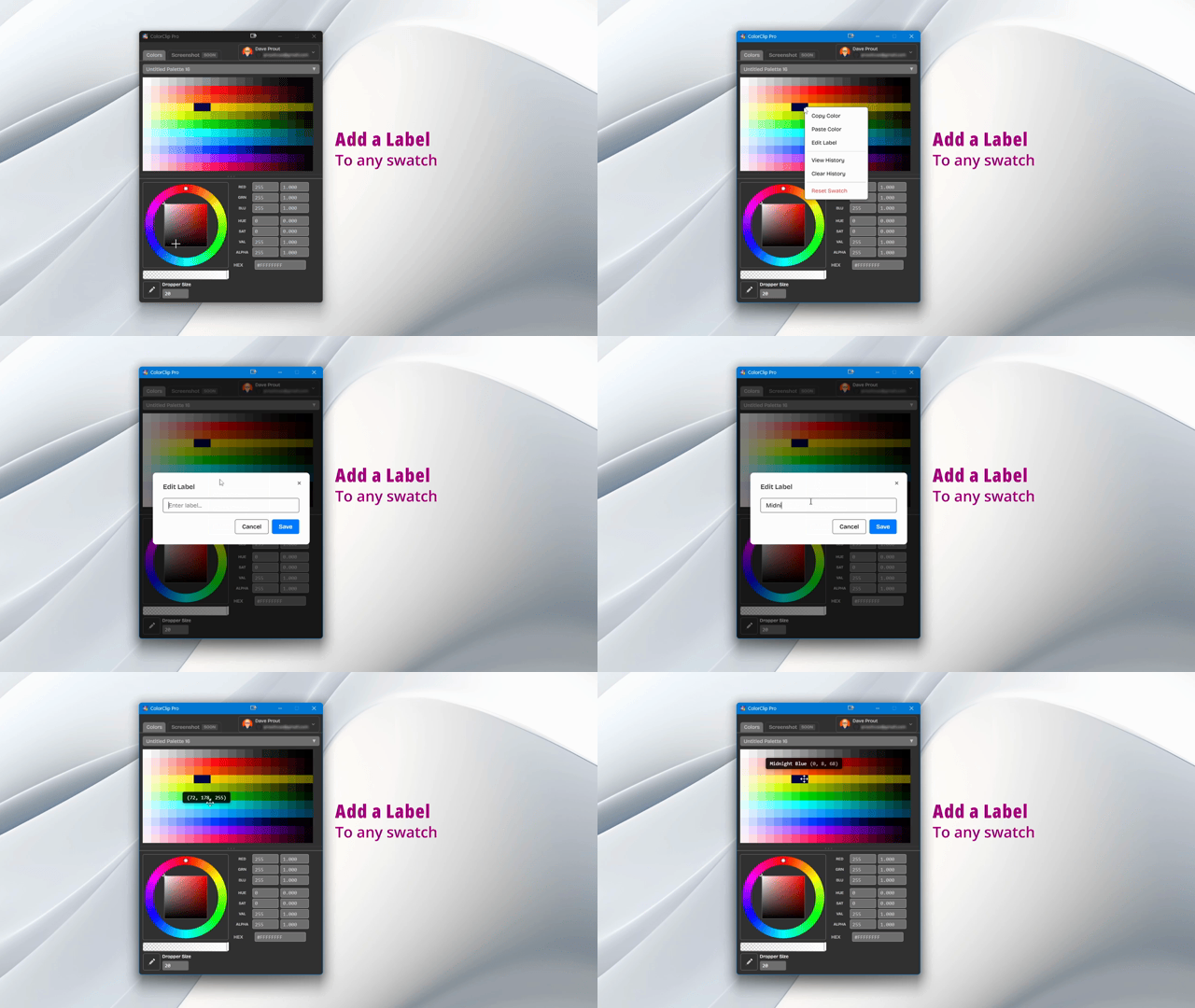 Swatch labels make it easy to identify colors at a glance
 Copy & Paste Swatches
Right-click any swatch to copy it, then paste it into another slot or palette. Great for duplicating colors across projects.
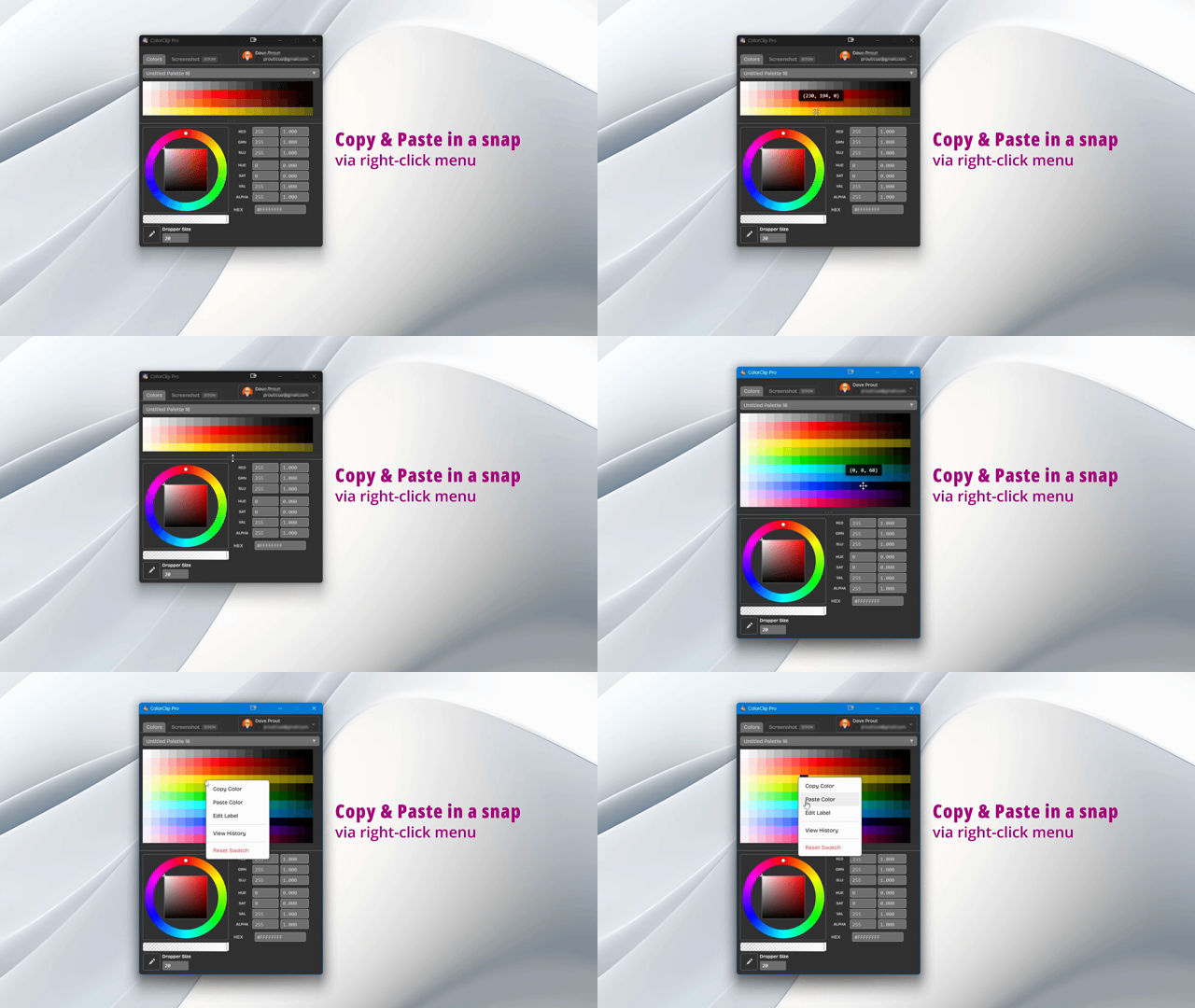 Copy and paste swatches between any palettes
 Rearrange Swatches
Drag and drop swatches to reorder them. Your layout is saved automatically.
Delete Swatches
Right-click a swatch and select Delete, or press Delete when a swatch is selected.
Step 4: Copy Colors
Click any swatch to instantly copy its color value. ColorClip Pro supports automatic format conversion — see your color in every format simultaneously.
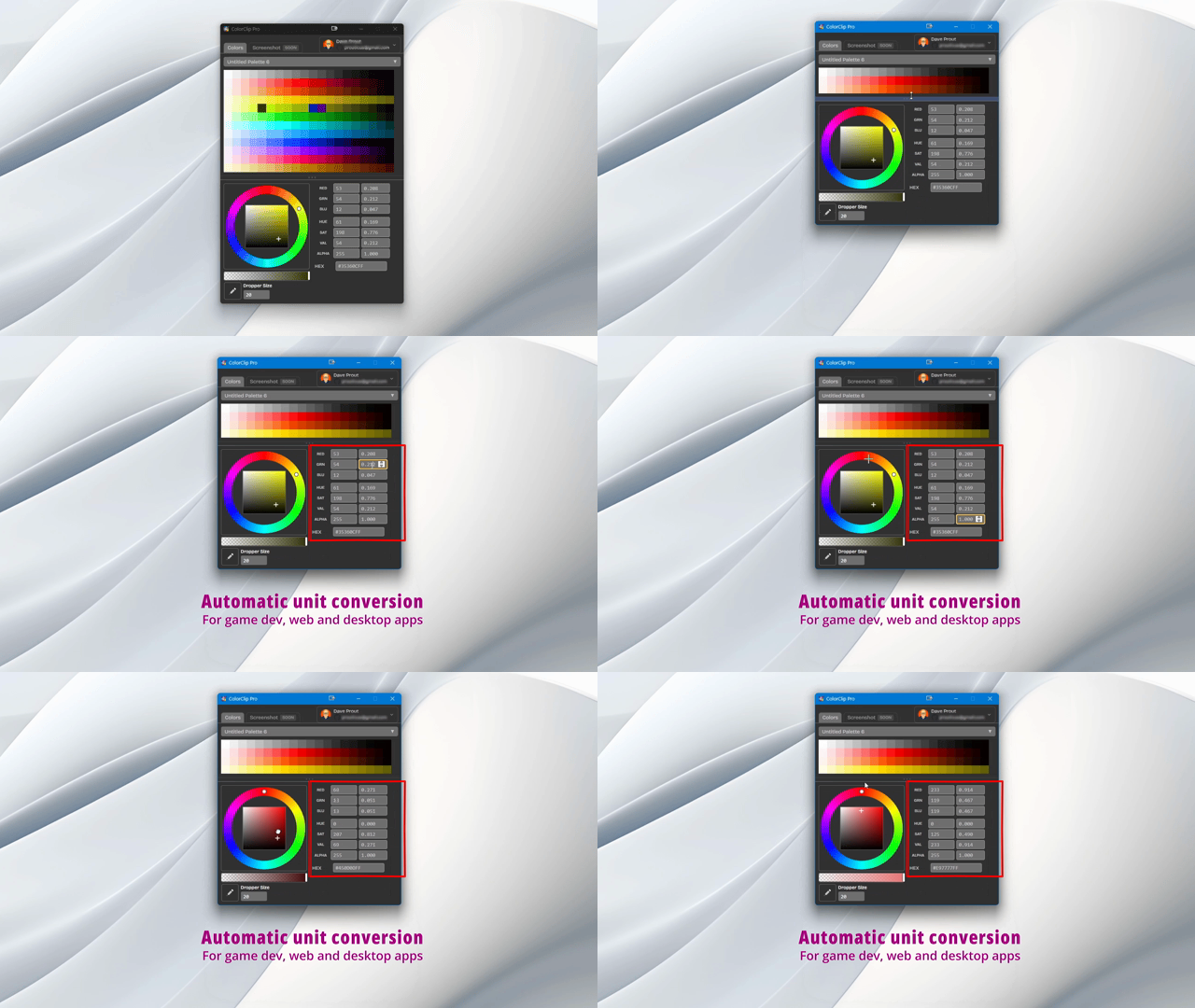 Change the color model and your value updates instantly — no manual conversion needed
 Supported copy formats:
- HEX —
#FF5733 - RGB —
rgb(255, 87, 51) - HSV —
hsv(11, 80%, 100%) - Normalized RGB —
1.0, 0.34, 0.2(for game engines)
Step 5: Enable Cloud Sync (Optional)
Sync your palettes across all your devices — Windows and Mac — with a single click. No complicated setup required.
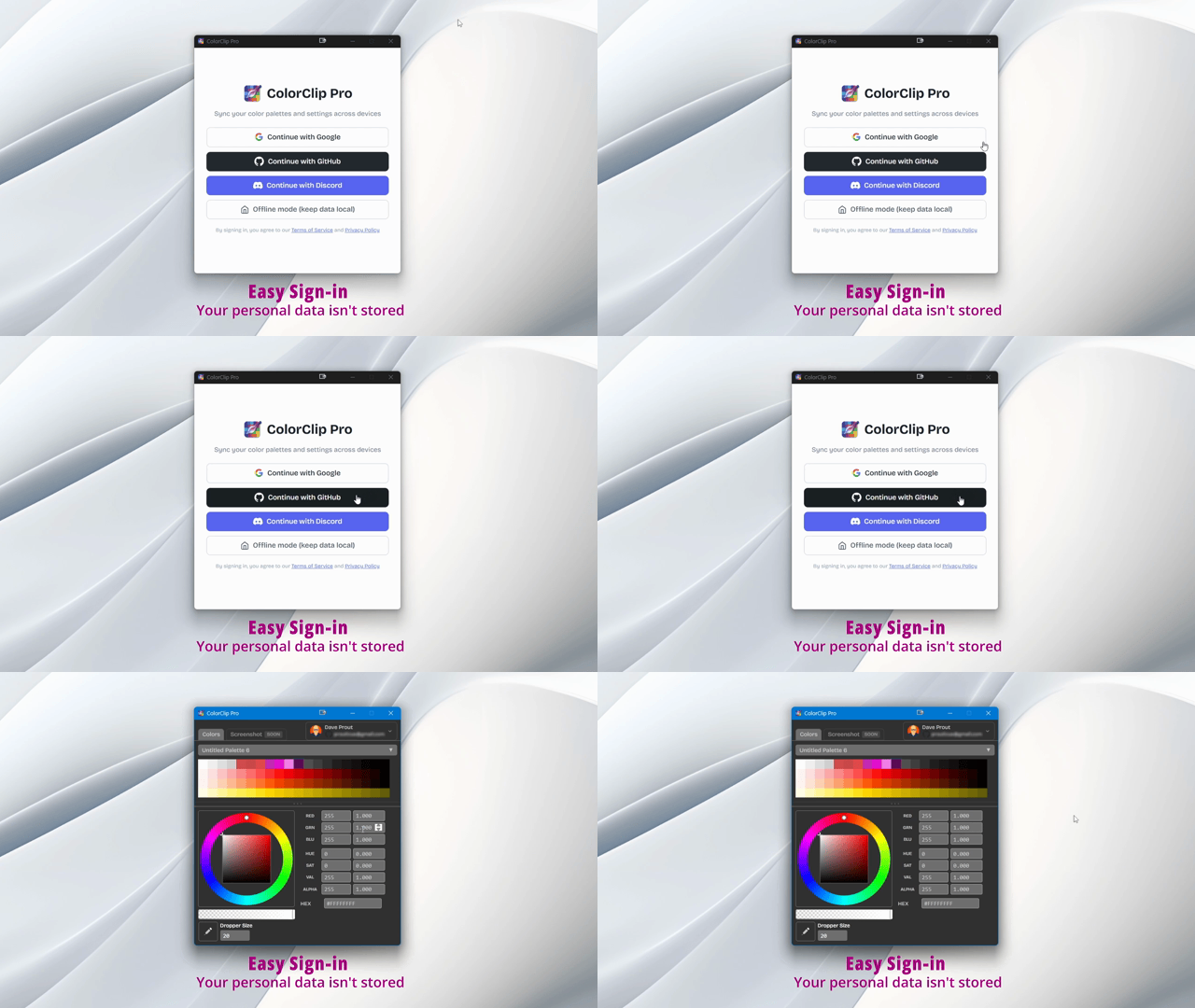 Cloud sync setup takes seconds and works across Windows and macOS
 - Click the cloud icon in the top-right corner
- Sign in with Google, GitHub, or Discord
- Your palettes sync automatically in real time
- Install ColorClip Pro on other devices and sign in with the same account
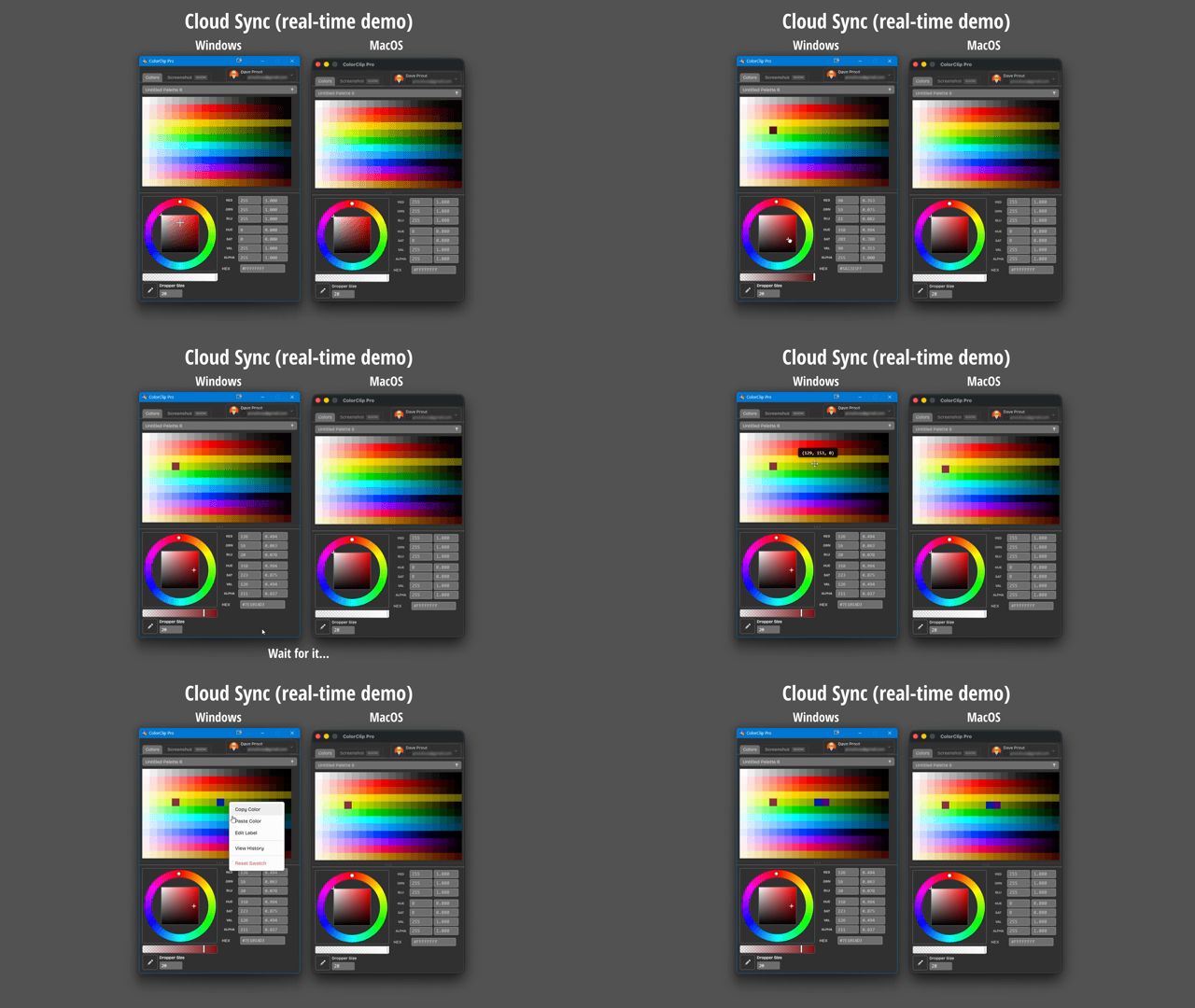 Your palettes stay in sync across Windows and macOS — changes appear instantly on all devices
 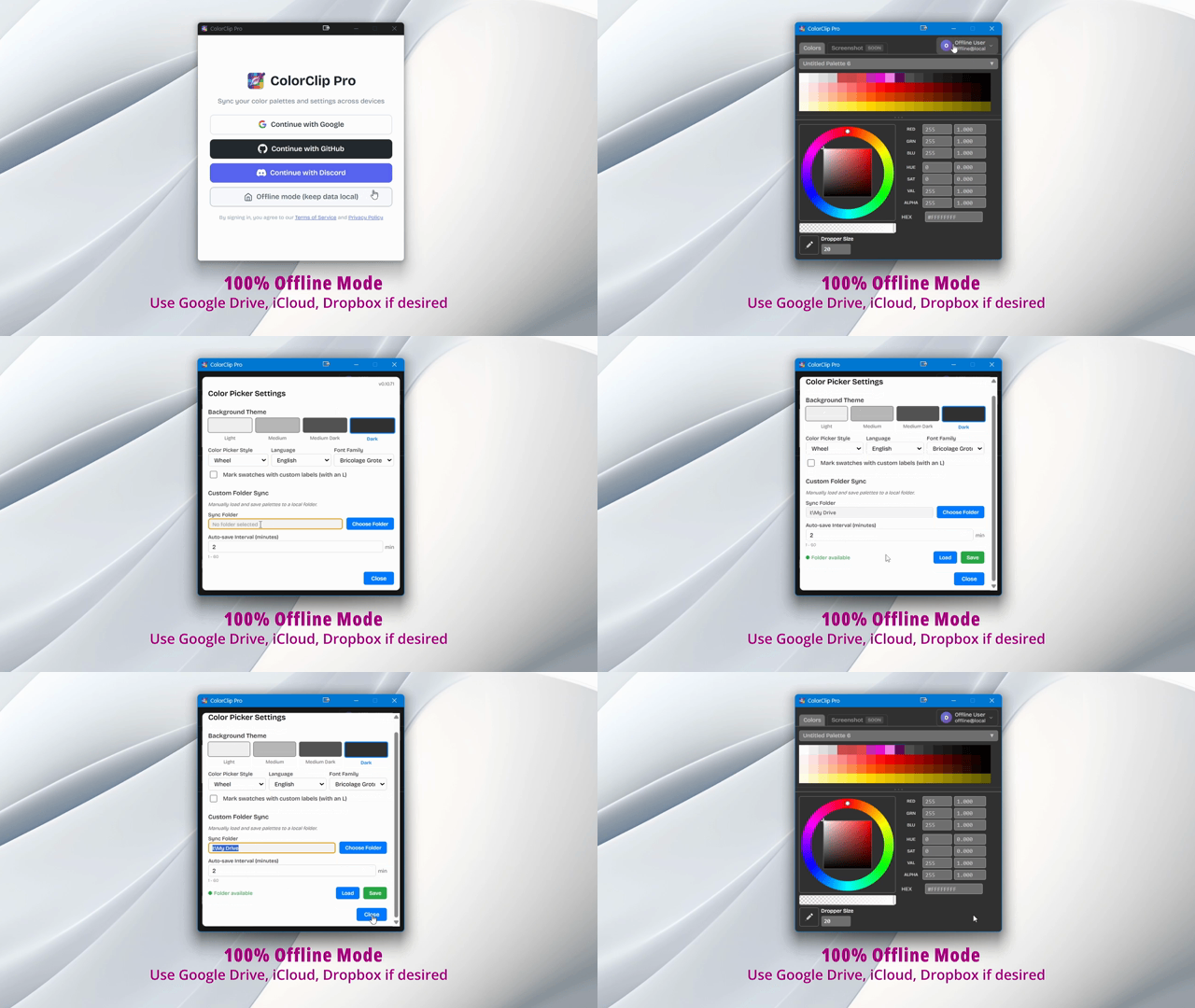 Offline mode: point ColorClip Pro at any sync folder — no login required
 Step 6: Customize Your Theme
ColorClip Pro offers four levels of dark mode so it fits seamlessly into your workspace, whether you prefer a bright UI or a deep dark one.
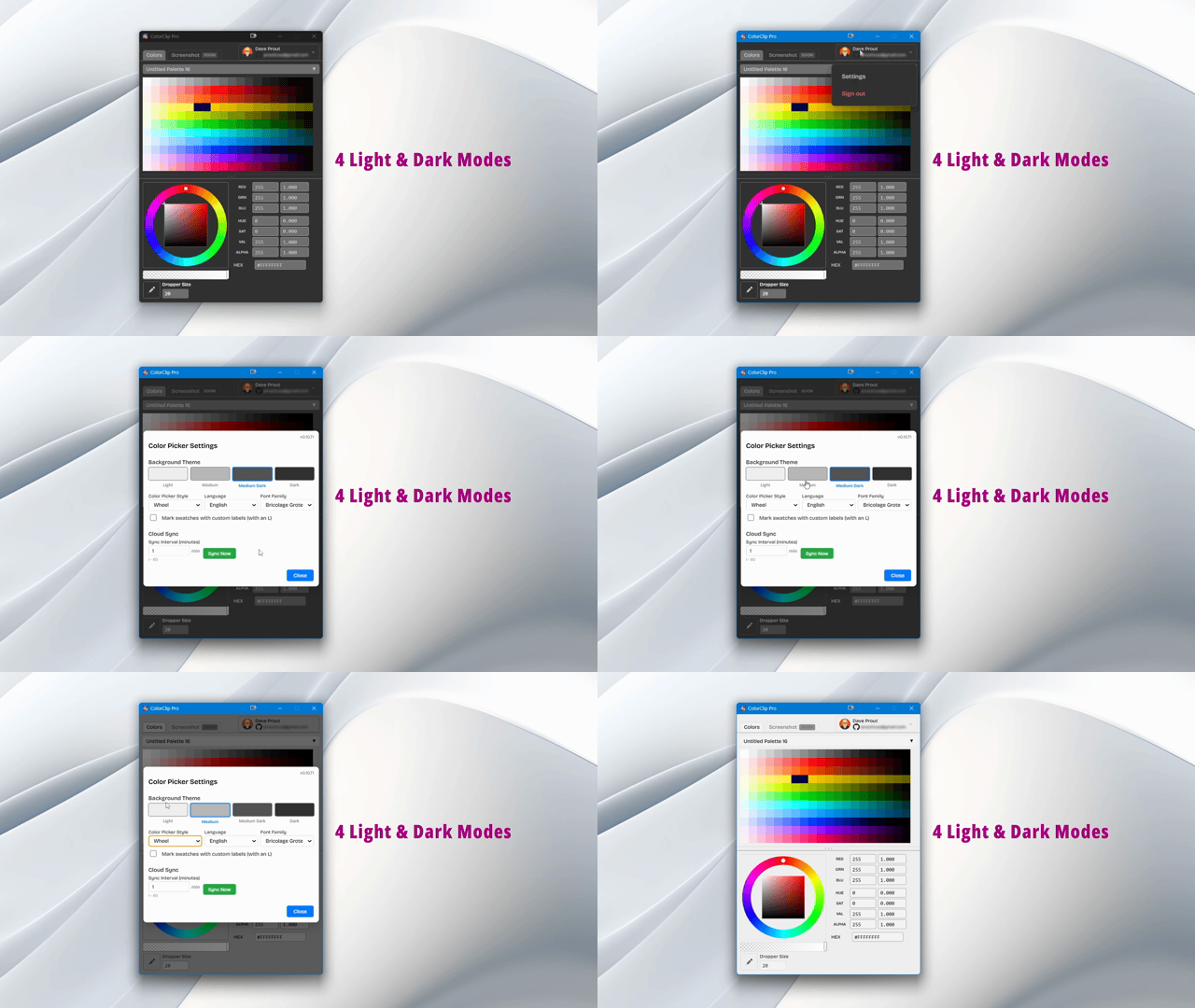 Choose from light, dim, dark, and deep dark themes in Settings → Appearance
 Keyboard Shortcuts
| Action | macOS | Windows |
|---|---|---|
| Eyedropper | Cmd+E | Ctrl+E |
| New Palette | Cmd+N | Ctrl+N |
| Settings | Cmd+, | Ctrl+, |
| Delete Swatch | Delete | Delete |
Next Steps
- Explore advanced palette features
- Learn about frequently asked questions
- See all release notes