Palettes
Palettes are the core organizational unit in ColorClip Pro. Each palette can hold up to 256 color swatches, arranged in a customizable grid.
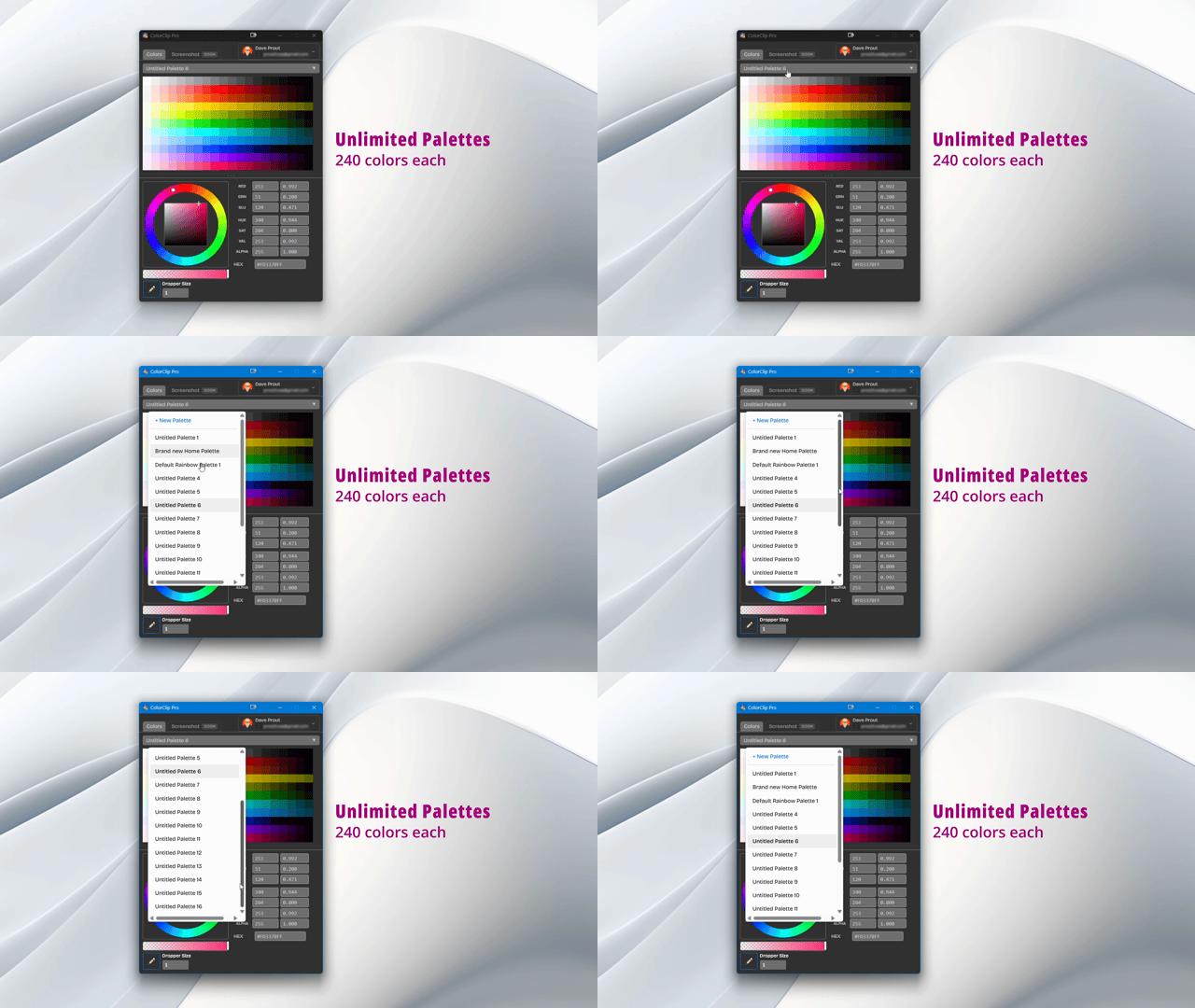 Create unlimited palettes and switch between them instantly from the dropdown
 Creating Palettes
To create a new palette:
- Click the + New Palette button
- Or press
Cmd+N(Mac) /Ctrl+N(Windows) - Give your palette a descriptive name
- Start adding swatches!
Managing Swatches
Adding Swatches
- Click an empty slot — opens the color picker
- Eyedropper — captured color goes into the first empty slot
- Paste HEX — paste a color code directly into a slot
Editing Swatches
- Click swatch — copies the color value to your clipboard
- Double-click — opens the color editor
- Right-click — shows the full context menu
Swatch Labels
Give each swatch a custom label so you always know what it's for. Labels appear when you hover over the swatch.
- Right-click on a swatch
- Select Edit Label
- Type a name like "Primary Button" or "Text Color"
- Press Enter to save
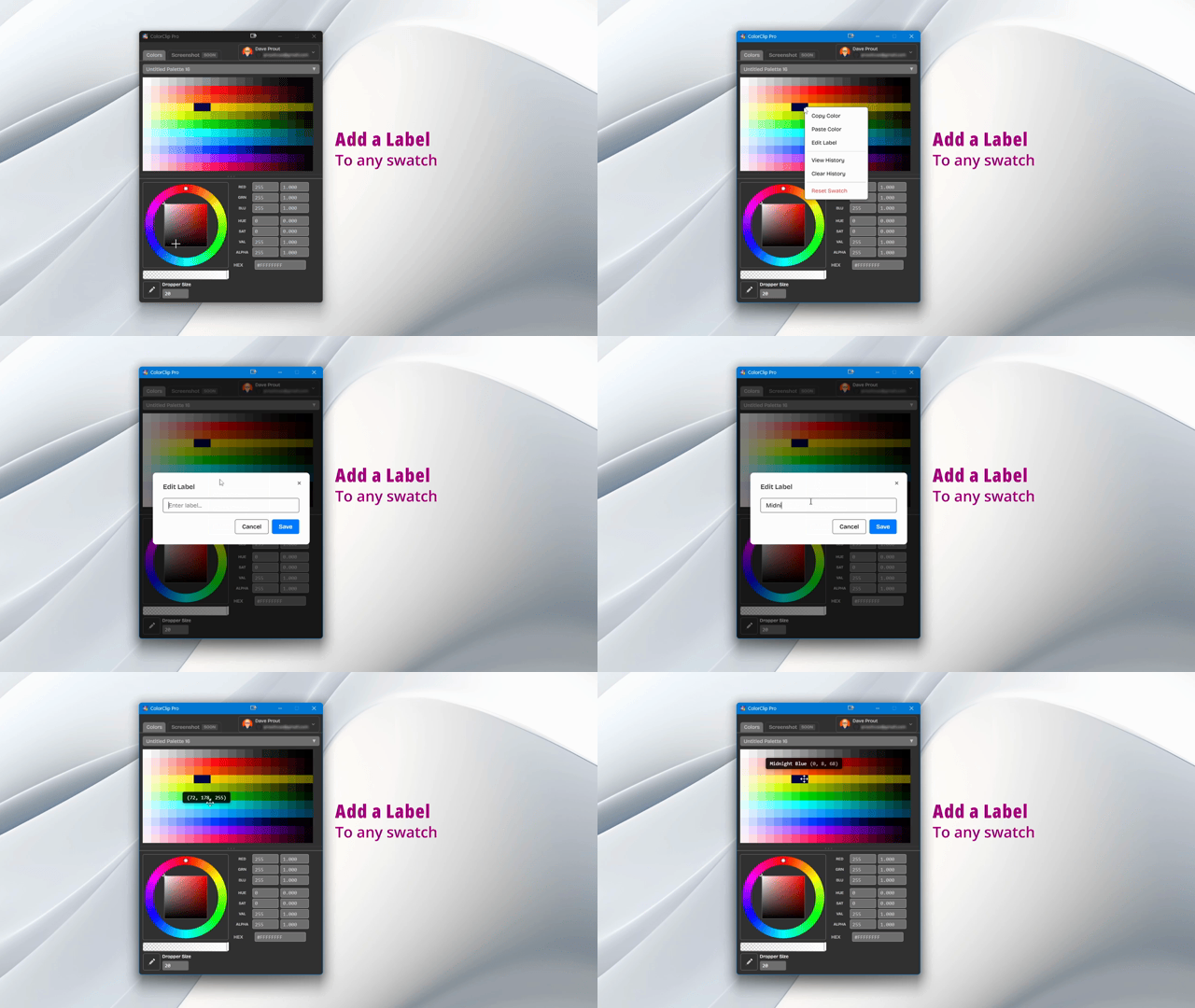 Labels make every swatch self-documenting — hover to see the name
 Color History
ColorClip Pro records every change to a swatch so you can go back in time and restore any previous version.
- Right-click on a swatch
- Select View History
- Browse all previous colors with timestamps
- Click any historical color to restore it
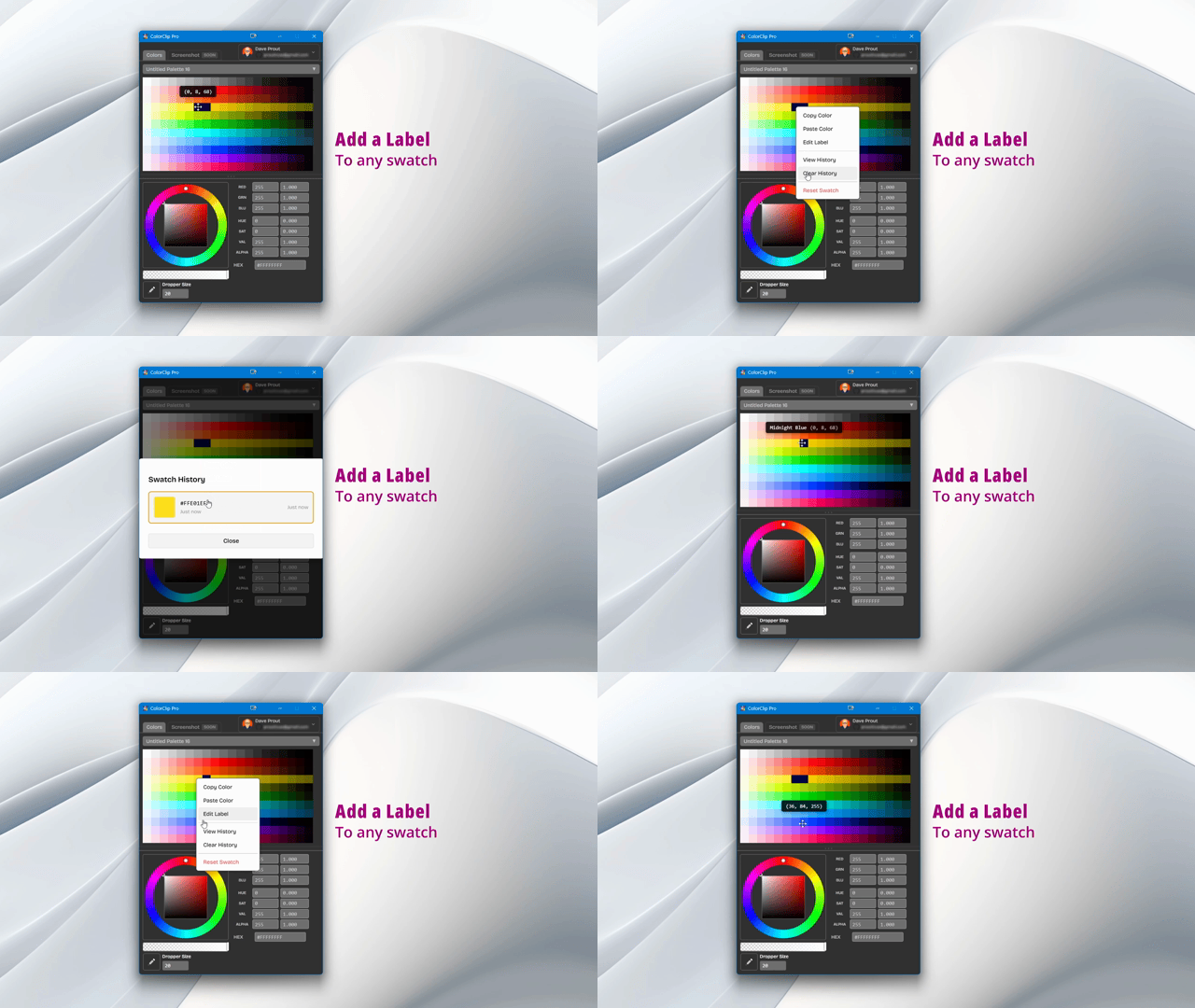 Swatch history lets you undo color changes without losing your work
 Copy & Paste Swatches
Duplicate swatches within a palette or across different palettes using copy and paste.
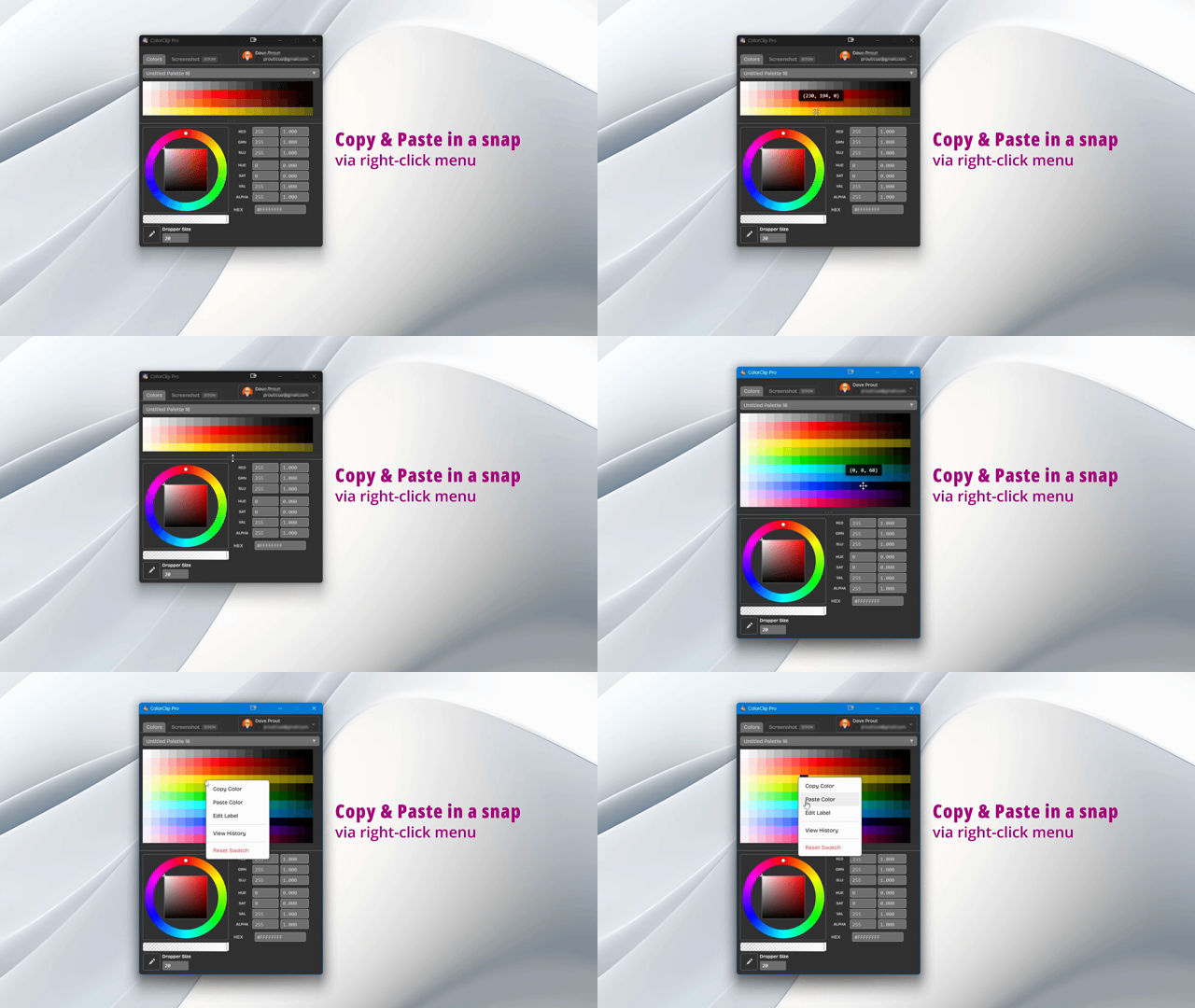 Copy swatches from one palette and paste them into another in one action
 Organizing Swatches
Drag and Drop
Drag swatches to rearrange them within the grid. Empty slots are preserved, so your visual layout stays exactly as you designed it.
Grid Positions
The grid maintains positional integrity — empty slots are real positions, not gaps to be collapsed. This matters for:
- Grouping related colors visually
- Creating light-to-dark gradient layouts
- Leaving intentional gaps as visual separators
Palette Settings
Rename a Palette
- Click the palette name at the top
- Type a new name
- Press Enter to save
Delete a Palette
- Open the palette menu (⋮)
- Select Delete Palette
- Confirm deletion
Warning: Deleting a palette is permanent and cannot be undone, even with cloud sync enabled.
Multiple Palettes
Organize your work with separate palettes for each project, client, or context:
- Project-based — one palette per project
- Category-based — Brand Colors, UI Colors, Print Colors
- Client-based — one palette per client
- Purpose-based — Favorites, Inspiration, In Progress
Best Practices
Naming Conventions
- Be descriptive: "Acme Corp Brand" rather than "Palette 1"
- Include version numbers for iterations: "Website v2"
- Add dates for time-based work: "Holiday Campaign 2025"
Organization Tips
- Group similar colors together — all blues, all neutrals, etc.
- Put frequently-used colors in the top-left corner for quick access
- Label any color that isn't obviously named by its hex value
- Keep palettes focused — create separate palettes rather than one enormous one
See Also
- Quick Start Guide — add your first colors
- FAQ — common questions about palettes
- Release Notes — new palette features by version